Chat Basics
How to talk to CoPilot so it does what you meant — and how to tell, quickly, whether it did. Read this once before the task pages; most of the difference between a smooth session and a frustrating one is in these habits.
Just describe the work
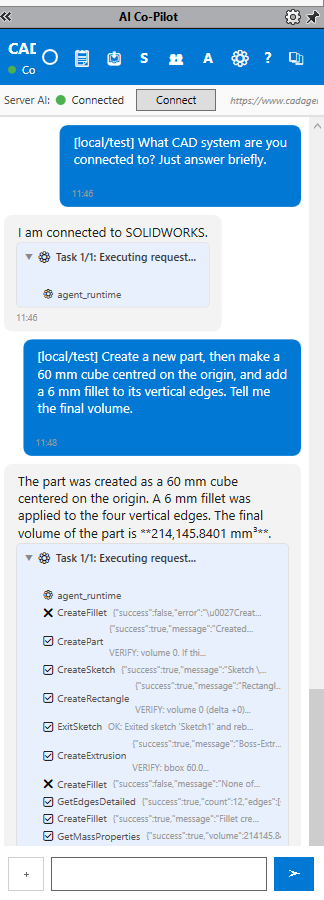
There is no command syntax. Describe what you want the way you would tell a colleague who is sitting at the keyboard. CoPilot picks the CAD operations, runs them in your open document, and reports each step as it completes.
You can then follow up in the same conversation, and it edits the model it just built rather than starting again:
Units and coordinates
Every number you type is millimetres unless you say otherwise; “20” and “20 mm” mean the same thing. Angles are degrees. Forces are newtons. Say “inch” explicitly if you need imperial.
When a position matters, say which frame you mean. “World” coordinates are the model's global X/Y/Z; sketch coordinates are measured in the sketch's own plane. Being explicit costs four words and saves a rebuild.
Six habits that make CoPilot reliable
- One feature per message on anything complicated. A long plan — twenty features in one prompt — can run out of room part-way through and stop in the middle. Ask for a feature, check it, ask for the next.
-
Say what you expect the result to be. An expected volume, an expected dimension, an expected number of holes. CoPilot cannot fake a measured value, so stating the target turns a hopeful instruction into a checkable one.
Cut the Ø28 hole through both prongs. I expect the volume to drop by about 22,170 mm³ — measure before and after and tell me the actual change.
-
Ask for the measurement, not the summary. The prose is written after the work; the measurement comes from the CAD system. See Verifying results.
What does the mass properties tool report as the volume, in cubic millimetres?
- Name geometry by where it is, not by what it is called. “The face whose normal is +Z” and “the edge near (−90, 13, 44)” are unambiguous. “Face3” and “the top edge” are not — face numbers belong to one particular solid, and “top” is not the same direction in every CAD system.
-
Take a checkpoint before anything risky.
Take a checkpoint of this document before you start
If the result is wrong, ask to go back to it rather than unpicking the changes by hand.
-
When something is wrong, report the measurement. “That is wrong” gives CoPilot nothing to work with; a number tells it exactly what to look for.
The volume reads 9,000 mm³ but a 40 × 30 × 10 block should be 12,000. Find what is missing.
Watching it work
Steps stream into the chat as they complete, each with the values actually used — not the values you asked for. Read them. A hole reported at Z = 0 when you asked for Z = 20 is visible in the transcript long before it is visible in the model.
For features placed away from the origin, the reply includes placement evidence: the world coordinates the geometry actually landed at. If those are not the numbers you asked for, stop and fix the placement before building anything on top of it.
Screenshots
The image is posted in the chat. CoPilot can also look at its own screenshot and act on what it sees, which is how it catches drawing layout problems.
A full-screen capture including dialogs, ribbon and panels is available too — useful when you are asking for help with something on screen.
Undo, checkpoints and rollback
A checkpoint is a restorable copy of the document, so it survives things that undo does not. Take one before a long or destructive sequence.
Refusals are a feature
CoPilot will sometimes tell you it did not do something. That is deliberate. Operations that used to report success while quietly doing nothing now stop instead, and the refusal names the measurable reason — the nearest real edge and how far away it was, the gap that was too large, the solver status of a mate that would not solve, a cut that would have removed more material than the body contains.
Read the refusal text: it usually contains exactly the number you need to correct your request.
Asking about the model
CoPilot is not only for changing geometry.
Selecting and looking at things
CoPilot can highlight geometry in the viewport and change your view, which is often the quickest way to confirm you and it are talking about the same thing.
When there is no operation for it
Occasionally you need a CAD command that has no direct equivalent in the chat. CoPilot can open the command's dialog, read it, fill it in and confirm it.
See Native Macros & Automation for the full picture, including the caveat that a waiting dialog blocks the conversation until it is answered.
Doing the same thing many times
CoPilot runs the sequence once per item and reports each result separately, so you can see which ones worked.
Five ways to make CoPilot yours
- Skills — standing instructions. “All drawings are A3, third angle, dimensions to one decimal.”
- Macros — a recorded sequence you replay on demand, with no AI model in the run.
- Variations — one master document in a grid of named sizes.
- Knowledge base — your standards and catalogues, searchable and quotable.
- Memory — durable facts about how you work.
Remember that our default material is 6061-T6 and our default tolerance is ±0.1 mm
Exporting a conversation
Conversations can be exported from the chat window, so you can keep a record of what was asked and what was done, attach it to a support request, or hand it to a colleague picking the job up.
Language
CoPilot answers in the language you set in Settings, and the change applies immediately. See Settings & Languages.
What CoPilot cannot do for you
It cannot take responsibility for the result. Everything it produces is a draft for your review — that is not a disclaimer bolted on the end, it is how the tool is designed to be used. Verifying results explains what to check and how.
See also
- The Desktop Agent — the window all of this happens in.
- Examples — ten worked use cases across the whole product.
- Markup Board — when pointing is quicker than describing.
- Spending fewer tokens — the habits that cut the cost of all this.
- Part Modeling — worked modelling examples.
- Drawings & Dimensions
- Assemblies
- Verifying results
- Troubleshooting & FAQ